My autorun Icon is not showing up correctly, why?
AutoRun Wizard lets you set your own drive icon, and it works on every Windows version, on CDs, DVDs and USB drives. When the icon does not appear, it is almost always one of the causes below.
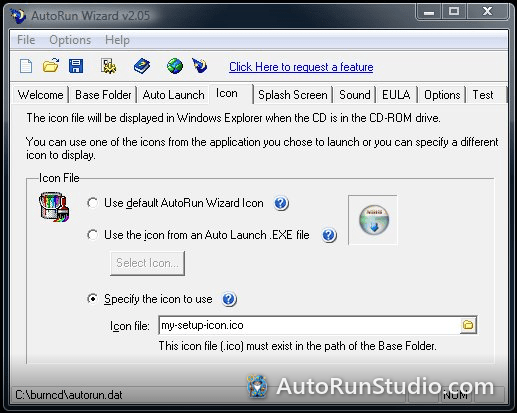
1. The .ico file is not at the root
If you chose a custom .ico file, put it at the root of the Base Folder, not in a subfolder. Folders with spaces in the name are a common cause of a missing icon. For example, if your Base Folder is C:\Projects\Sales CD\, the icon belongs at C:\Projects\Sales CD\myicon.ico.
2. Windows is showing a cached icon
Windows remembers drive icons. Right after burning, the burning software may also still have the drive locked. Try these in order:
- Eject and reinsert the disc, or unplug and replug the USB drive.
- Try the disc or drive in another computer.
- Restart the computer.
3. The icon file itself
Use a real .ico file, not a renamed PNG. For a sharp icon in every view, include several sizes (256x256, 48x48, 32x32 and 16x16). See custom icon and drive name.
4. Check autorun.inf
- Right-click the drive and choose Open.
- Open autorun.inf in Notepad and find the line starting with
icon=. - For a .ico file, the file named there must exist relative to autorun.inf (for example
icon=myicon.icomeansD:\myicon.ico). - For an icon from an .exe, the line ends with a number such as
,0or,1. Open the project in AutoRun Wizard to check it is the icon you want.
5. Antivirus removed autorun.inf
Some security tools delete autorun.inf from USB drives. See antivirus and autorun files.