How do I open my HTML autorun menu full screen in Microsoft Edge?
AutoRun Wizard's Internet Explorer Kiosk option was the classic way to show an HTML menu full screen. Microsoft has retired Internet Explorer: it is permanently disabled on Windows 10, and Windows 11 never included it. On those PCs, a request to open Internet Explorer opens Microsoft Edge instead, and the Kiosk setting is not applied. Here is how to get a full-screen menu on modern Windows.
Option 1: open the menu in the default browser (simplest)
Autorun your HTML file and check Force the file to be opened within the default Internet Browser. The menu opens in a normal browser window in whatever browser the user prefers. The user can press F11 for full screen; you can say so on the page.
Option 2: launch Edge in kiosk mode
Every Windows 10 and 11 PC has Microsoft Edge, and Edge has a kiosk switch. In the AutoRun File Properties:
- File to Autorun:
C:\Program Files (x86)\Microsoft\Edge\Application\msedge.exe(check the path on your own PC). - Check Allow file to exist outside of Base Folder.
- Check Command Line and enter:
--kiosk "%BASE_FOLDER%menu.html" --edge-kiosk-type=fullscreen --no-first-run
- Save and Test.
%BASE_FOLDER% becomes the root of the disc on the user's PC (for example D:\), so %BASE_FOLDER%menu.html becomes D:\menu.html. Change menu.html to your file name.
Know before you ship: if Edge is already open on the user's PC, Windows may show your page in the existing Edge window instead of a kiosk window. Microsoft describes command-line kiosk mode as a way to test kiosk setups, so test on the kinds of PCs your users have, and always give the user a visible way out (below).
Let the user close it
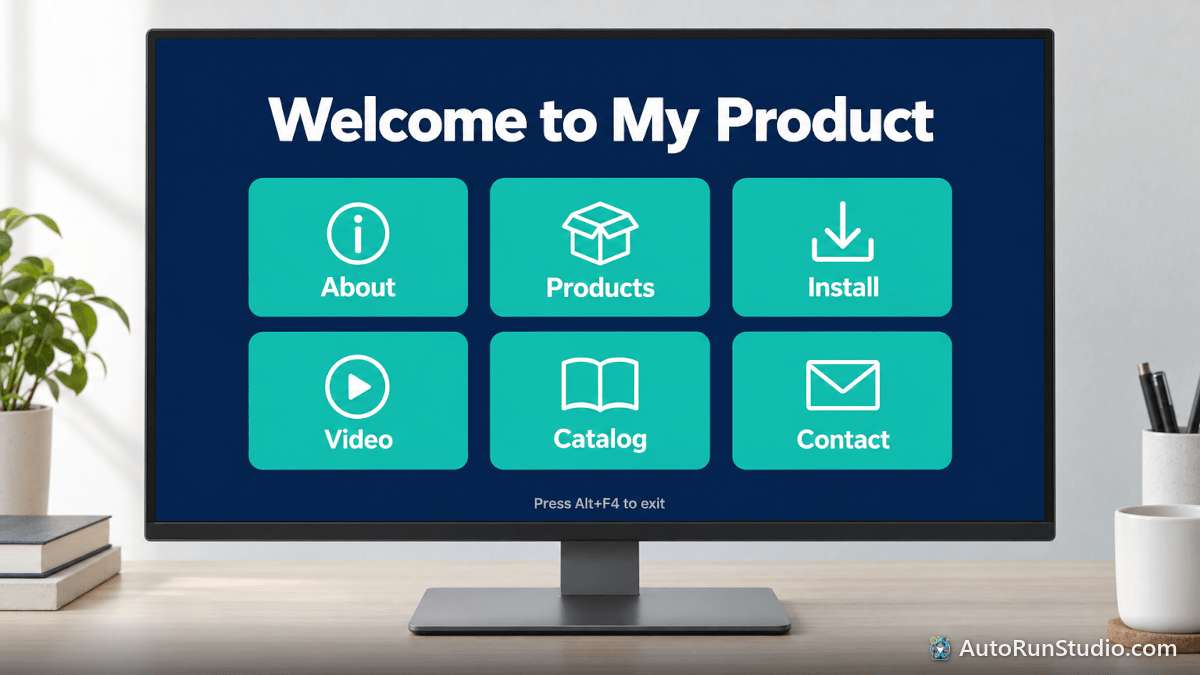
In kiosk mode there is no title bar or close button. The user can press Alt+F4. Tell them so on the menu page. A "Close" link using window.close() works only while the user is still on the first page; once they click to another page, browsers ignore it for security reasons. See closing the kiosk window.
Building the menu
Plain HTML and CSS work best: no server, no external scripts, and relative links (products.html, not D:\products.html) so the menu works from any drive letter. See adding a menu to your autorun.